
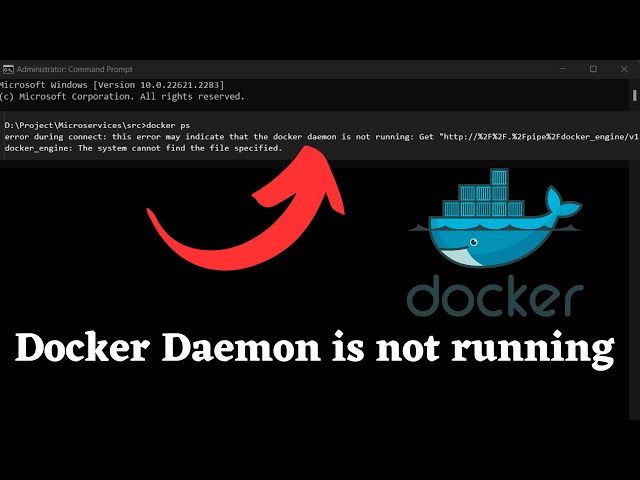
You typed docker ps, hit enter, and got something like this:
Cannot connect to the Docker daemon at unix:///var/run/docker.sock. Is the docker daemon running?Or maybe the Windows variant: error during connect: this error may indicate that the docker daemon is not running.
Either way, the Docker CLI is alive and well — it's the daemon (dockerd) underneath it that isn't. The CLI is just a client that talks to the daemon over a socket. No daemon, no containers. This guide walks through how to start the docker daemon on every major OS, what to do when the obvious commands don't work, and how to make sure it stays running after a reboot.
How docker actually starts (a 60-second mental model)
Docker is split into two pieces: the CLI (docker) and the daemon (dockerd). When you run docker run nginx, the CLI sends an HTTP request to the daemon over /var/run/docker.sock (Linux/Mac) or a named pipe (Windows). The daemon does the actual work — pulling images, creating containers, wiring up networks.
This matters because "start the docker daemon" means different things on different operating systems:
- On Linux, the daemon runs natively as a systemd service.
- On Mac, the daemon runs inside a lightweight Linux VM managed by Docker Desktop (or Colima, OrbStack, etc.).
- On Windows, the daemon also runs in a VM — either via WSL2 or Hyper-V — orchestrated by Docker Desktop.
So on Linux you start a service. On Mac and Windows you start an application that, in turn, boots a VM that runs the daemon. Knowing which layer is broken makes troubleshooting much faster.
Linux: start docker daemon with systemd
Almost every modern Linux distribution uses systemd, and Docker installs itself as a systemd unit. The fix is usually one command:
sudo systemctl start dockerVerify it's running:
sudo systemctl status dockerYou should see Active: active (running) near the top. To make Docker start automatically on boot — which you almost always want on a server:
sudo systemctl enable dockerYou can combine both with sudo systemctl enable --now docker.
When systemctl isn't an option
A few real-world cases where the standard approach won't work:
You're inside a container or WSL1. No systemd, no systemctl. Start the daemon manually:
sudo dockerd &This is fine for ad-hoc work but you'll lose the daemon when the shell closes. For WSL1 specifically, upgrade to WSL2 — Docker support there is dramatically better.
You're on a minimal distro using OpenRC, runit, or s6. Alpine, Void, and Gentoo users know the drill:
# Alpine / OpenRC
sudo rc-service docker start
sudo rc-update add docker default
The daemon won't start and systemctl status shows a failure. Check the journal — this is where 90% of real Linux Docker problems get diagnosed:
sudo journalctl -u docker.service -n 50 --no-pagerCommon culprits include a corrupt /var/lib/docker directory after an unclean shutdown, a port conflict on 2375/2376 if you've enabled the TCP socket, or storage driver issues after a kernel update. The journal will tell you which.
Permission denied without sudo
If docker ps works with sudo but fails without it:
permission denied while trying to connect to the Docker daemon socketAdd your user to the docker group:
sudo usermod -aG docker $USER
newgrp docker
Security note: members of thedockergroup can effectively get root on the host (they can mount/into a container). On shared servers, treat docker group membership as equivalent to sudo access.
Mac: start docker daemon on macOS
On macOS the "daemon" is really Docker Desktop (or an alternative) running a Linux VM. You don't manage dockerd directly — you manage the app that wraps it.
Docker Desktop
The simplest path:
- Open Spotlight (
Cmd + Space), typeDocker, and hit enter. - Wait for the whale icon in the menu bar to stop animating. When it's solid, the daemon is ready.
- Verify with
docker versionin your terminal — bothClientandServersections should be populated.
To start Docker Desktop from the terminal:
open -a DockerTo launch it on login, go to Docker Desktop → Settings → General → Start Docker Desktop when you sign in.
When Docker Desktop hangs at "Starting"
This is the most common Mac issue, especially after macOS updates. Things to try in order:
- Quit and relaunch. Click the whale icon → Quit Docker Desktop, wait 10 seconds, then
open -a Docker. Sounds dumb, works often. - Restart from the troubleshoot menu. Whale icon → Troubleshoot → Restart.
- Reset to factory defaults if you don't have important volumes. Same menu, "Clean / Purge data" option.
- Check disk space. The Linux VM image lives in
~/Library/Containers/com.docker.docker/Data/vms/0/data/Docker.rawand can be tens of gigabytes. If your disk is full, the daemon won't start.
Lightweight alternatives
Docker Desktop is heavy and licensed — for companies over 250 employees or with $10M+ revenue, it requires a paid subscription. Two solid free alternatives:
- Colima —
brew install colima docker, thencolima start. Lean, scriptable, no GUI. - OrbStack — free for personal use, dramatically faster than Docker Desktop, lower memory footprint. Uses Apple's Virtualization framework.
Both expose a standard Docker socket, so the docker CLI works unchanged. I've run Colima in production on developer laptops for over a year — the only friction is occasionally tweaking CPU/memory allocation (colima start --cpu 4 --memory 8).
Windows: start docker daemon on Windows 10 & 11
Windows is similar to Mac: Docker Desktop manages a Linux VM (via WSL2 by default, or Hyper-V on older setups) and the daemon runs inside it.
Standard approach
- Press the Windows key, type
Docker Desktop, press enter. - The Docker icon appears in the system tray (bottom-right). Wait for it to stop animating.
- Open PowerShell or Command Prompt and run
docker versionto confirm.
To start it from PowerShell:
Start-Process "C:\Program Files\Docker\Docker\Docker Desktop.exe"Configure auto-start under Settings → General → Start Docker Desktop when you log in.
WSL2 issues — the most common Windows blocker
If Docker Desktop reports something like "WSL 2 installation is incomplete," you'll need to fix WSL before the daemon can start. From an admin PowerShell:
wsl --update
wsl --set-default-version 2
If WSL itself isn't installed:
wsl --installThen reboot. After the reboot, launch Docker Desktop again.
Hyper-V vs WSL2
Docker Desktop on Windows 10 Pro and Windows 11 supports two backends:
- WSL2 (recommended, default) — better performance, lower memory use, plays nicely with VirtualBox.
- Hyper-V — older, heavier, blocks other hypervisors.
Switch under Settings → General → Use the WSL 2 based engine. If you flip this and Docker won't start, make sure the underlying feature is enabled. Run as admin:
# For WSL2
dism.exe /online /enable-feature /featurename:VirtualMachinePlatform /all /norestart

# For Hyper-V
dism.exe /online /enable-feature /featurename:Microsoft-Hyper-V-All /all /norestart
Reboot, then start Docker Desktop.
"The system cannot find the file specified"
Almost always one of:
- Docker Desktop service is stopped. Open
services.msc, find Docker Desktop Service, right-click → Start. - The
com.docker.serviceis set to manual and didn't start. Same fix. - Your user isn't in the
docker-usersgroup. Add yourself:
net localgroup docker-users $env:USERNAME /addThen sign out and back in.
Verifying the daemon is actually running
Regardless of OS, the same three checks confirm a healthy daemon:
# 1. CLI can talk to the daemon
docker version

# 2. Daemon responds to a basic command
docker info

# 3. Container engine actually works end-to-end
docker run --rm hello-world
If docker version shows only the Client section and errors on Server, the CLI can't reach the daemon — it's still not running, or the socket path is wrong. If docker info works but docker run hello-world fails, you likely have a network or registry problem, not a daemon problem.
When the daemon starts but something's still broken
A daemon that runs isn't always a daemon that works. A few situations I've seen come up repeatedly:
The daemon starts, then exits seconds later. Almost always a config error in /etc/docker/daemon.json. Validate it:
cat /etc/docker/daemon.json | python3 -m json.toolIf that errors, your JSON is malformed. Fix it or temporarily move the file aside (sudo mv /etc/docker/daemon.json /etc/docker/daemon.json.bak) and try starting again.
Containers can't reach the internet. Often a conflict between Docker's default bridge (172.17.0.0/16) and your VPN or corporate network. Override it in daemon.json:
{
  "bip": "10.200.0.1/24",
  "default-address-pools": [
    {"base": "10.201.0.0/16", "size": 24}
  ]
}
Restart the daemon after editing.
The daemon runs, but docker pull is slow or fails. Check whether you need to configure a registry mirror or are hitting Docker Hub's anonymous pull rate limit (100 pulls per 6 hours). docker login if you have an account — that bumps the limit to 200.
When you don't want to manage the daemon at all
The daemon-management dance is fine on a laptop, but it gets old fast in production. Servers that boot with stale state, daemons that won't restart after a kernel upgrade, storage drivers fighting with the OS — running Docker yourself means owning all of this.
If you're shipping containers as part of a product rather than a hobby, you eventually want infrastructure where the daemon is somebody else's problem. That's the gap NoVPS is built for — you push a Dockerfile or a Compose file and the platform runs it, with the daemon, the host, the storage, and the registry all managed for you. No systemctl start docker after every server reboot, no Docker Desktop licensing decisions, no debugging WSL2 at 2am. It's one of several reasonable answers to "I don't want to babysit infrastructure" — Fly, Railway, and Render occupy similar territory — and it makes sense when the daemon stops being interesting and starts being overhead.
For local development, though, just keep Docker Desktop, Colima, or systemd's docker.service running. There's no reason to outsource your laptop.
Summary cheat sheet
| OS | Start command | Auto-start on boot |
|---|---|---|
| Linux (systemd) | sudo systemctl start docker | sudo systemctl enable docker |
| Linux (OpenRC) | sudo rc-service docker start | sudo rc-update add docker default |
| macOS | open -a Docker | Settings → General → Start on sign-in |
| Windows | Launch Docker Desktop from Start menu | Settings → General → Start on login |
If docker version shows both Client and Server sections, you're done. If not, check the journal (Linux), the Docker Desktop logs (Mac/Windows), or restart the wrapping app — in that order. Most daemon problems resolve in under five minutes once you know which layer is broken.